Follow stocks and build a watchlist
A watchlist is a page of the instruments you care about, each with its latest price, today's change and a small chart. You build it by following things, and it is kept in your browser.
#Follow something
You can follow anything that has its own page: stocks, funds, indexes, currencies and coins.
- Open its page, for example Apple, and select Follow at the top.
- The button changes to Following and a short message says Added to your watchlist.
- To stop, select Following again. The message says Removed from your watchlist.
You can also follow from the Popular to follow list on the Watchlist page: select the star beside a name. A filled star means you already follow it.
#The first time
Your list is kept in your browser, which needs the Saved preferences choice to be on. If it is not yet on, a box appears when you select Follow.
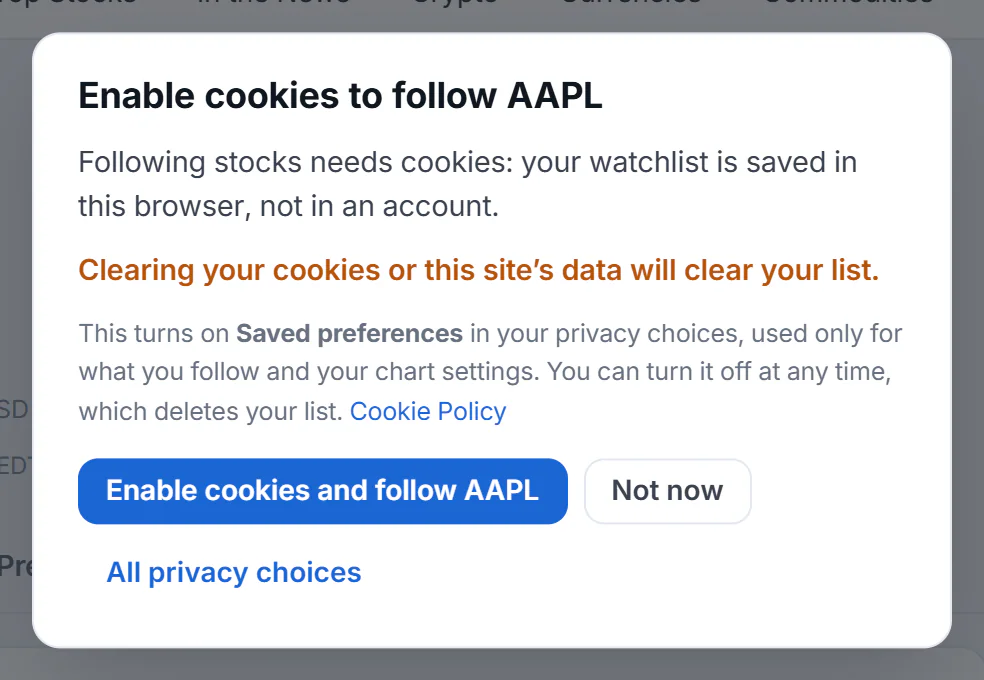
The first time you follow something, Finance explains why it needs cookies and asks.
- 1Clearing cookies or site data clears the list
- 2Turns on Saved preferences and follows the stock
- 3Leave things as they are
- 4Open all privacy choices
- Enable cookies and follow turns on Saved preferences and follows the stock in one step. It does not switch on anything else, such as AI answers or advertising.
- Not now closes the box and leaves everything as it was. Nothing is saved.
- All privacy choices opens the full privacy panel.
If you decided earlier not to allow Saved preferences, the watchlist card explains this and offers Enable cookies for my watchlist.

Without Saved preferences, the watchlist offers to turn it on. The popular symbols are quick ways to start.
- 1Why cookies are needed
- 2Turn on Saved preferences
#See your list
Open Watchlist in the Finance section bar, or use the Your watchlist card on the overview, which shows the same list with a Manage link.
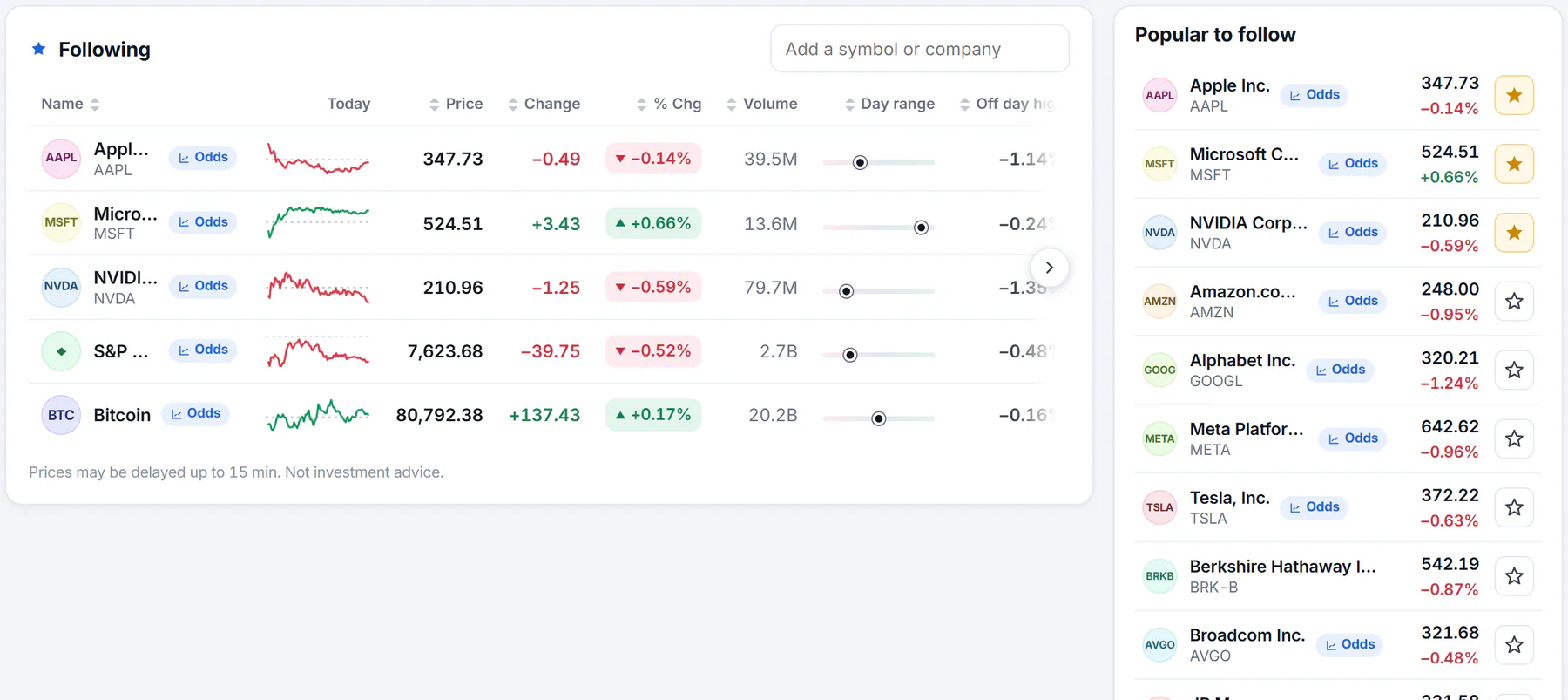
The Watchlist page. Newer additions are at the top, and any column heading sorts the list.
- 1Add a symbol or a company name
- 2Sort by any heading
- 3Select a name to open its page
- 4A filled star: already followed
The table shows each name, a small chart for today, the price, the change in points and percent, the volume and range bars. Select a name to open its page. Select a column heading to sort; see Sort tables and read the range columns. On a narrow screen, slide the table sideways.
To add a symbol without leaving the page, type into the Add a symbol or company box and pick a suggestion or press Enter.
To remove one, slide the table to its right-hand end and select the small cross at the end of its row.
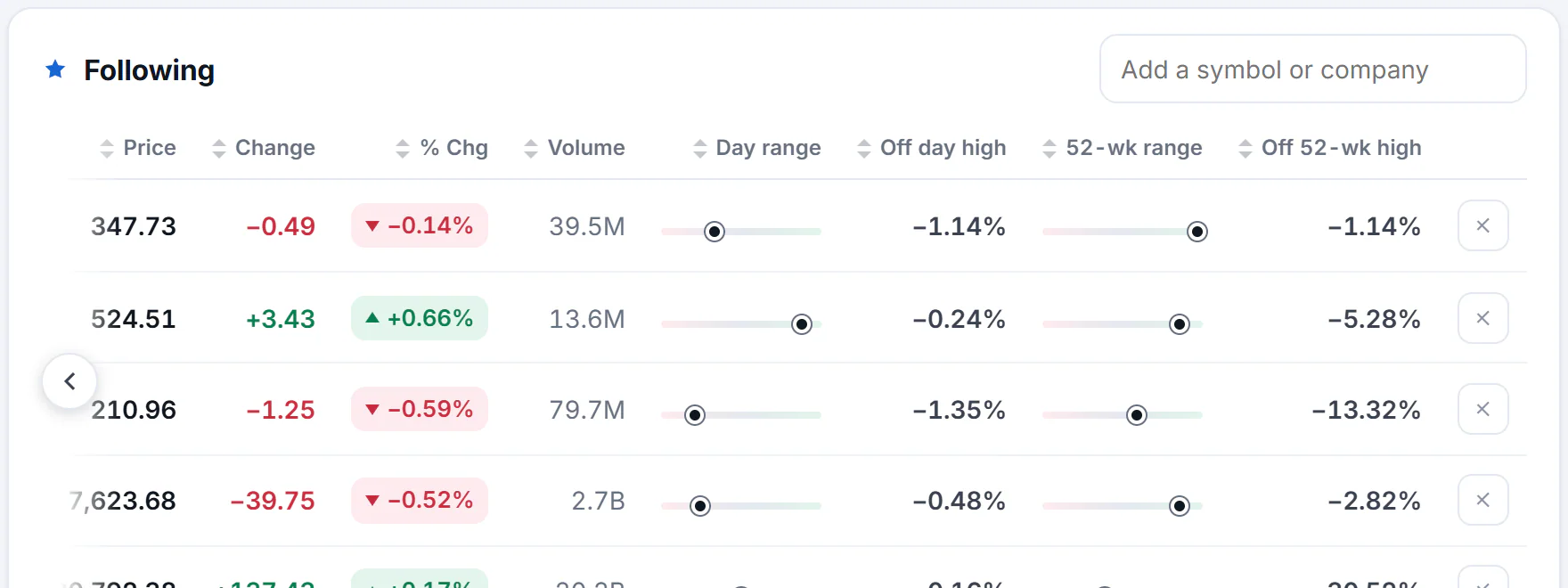
The cross at the end of a row removes that item from the list.
- 1Remove this stock from the list
If a symbol on your list has no price, such as one that has stopped trading, a note under the table names it and gives it its own remove button.
#Where your list is kept
You can follow up to 50 items, and the newest go to the top. If you use the same browser in two tabs, a change in one shows up in the other.
For lists that cover other parts of 4Search, such as members of Congress or topics, see Following.
#Common questions
How many stocks can I follow?
Up to 50.
Will my watchlist follow me to my phone?
No. It lives in the browser where you made it. Follow the same things again on the other device.
I followed a stock and it disappeared. Why?
Most often the site's data was cleared, Saved preferences was turned off, or you opened Finance in another browser or a private window. See Saved preferences.
Does following a stock send me alerts?
No. A watchlist is a page you open. Finance does not send notifications or emails.